When you upload a template to LLeMental, it’s ready to use immediately — no setup or configuration required. Upload, create a project, add your context documents, and generate.
For most users, that’s all they need. But if you want tighter control over how the AI generates content — the tone, format, depth, or messaging style — there are two tools available: Template Instructions and the AI chat editor.
This guide walks through both, using a competitive differentiation slide from our own marketing deck to show how different guidance produces dramatically different results.
Template Instructions
Instructions are an optional, persistent text field saved with each template. When present, they guide how the AI generates content across the entire presentation — every time that template is used.
Think of Instructions as a standing brief for the AI. You might use them to specify:
- The intended audience (technical buyers, executives, marketing practitioners)
- Preferred tone (formal, conversational, data-driven)
- Format preferences (bullet points vs. narrative, how many points per section)
- Content priorities (what to emphasize, what to avoid)
- Brand voice guidelines
Instructions are global — they apply to the whole presentation, not individual slides or sections. They’re also optional — the AI generates professional output without them.
Where to find Instructions
Instructions are accessed from the template library. Each template card has an Instructions button — click it to open the editor.
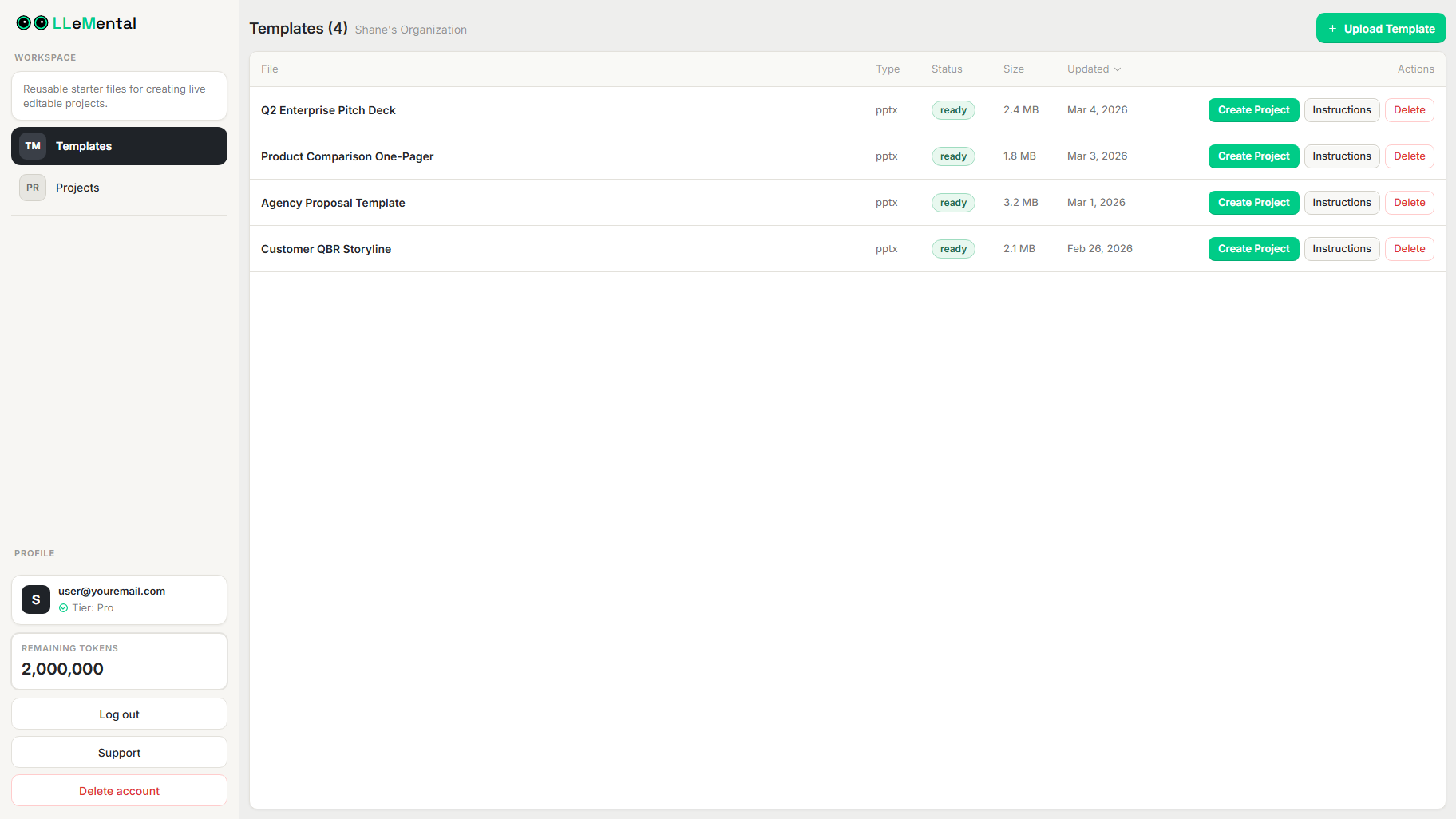
Once open, you’ll see a freeform text field where you can write whatever guidance is most useful for that template.
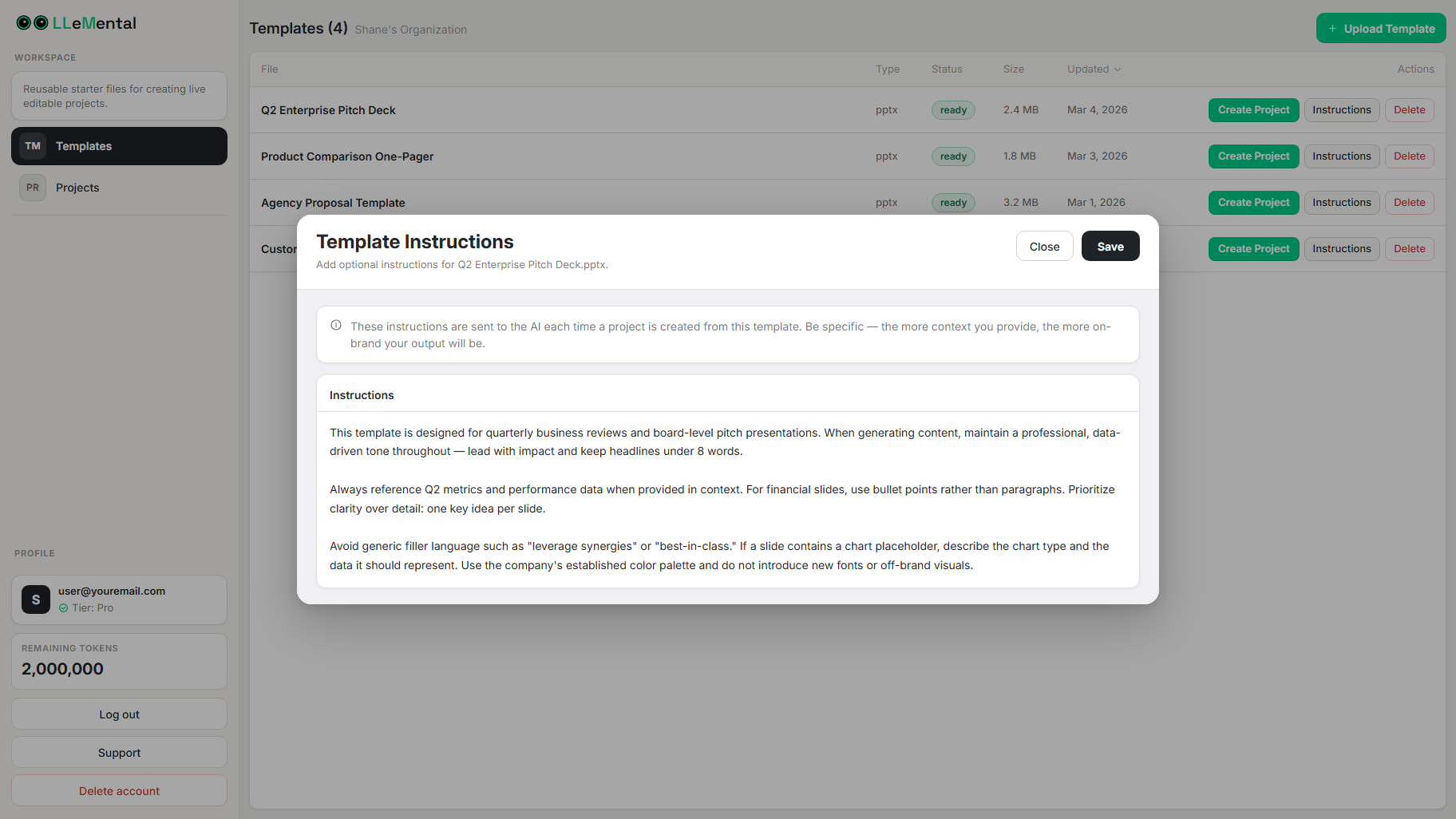
Instructions are saved automatically and applied to every generation from that template. You can update them at any time — changes take effect on the next generation.
Tips for writing effective Instructions
Be specific about format
❌ Vague
“List the benefits”
✅ Better
“List 3–4 benefits as concise bullet points, each under 15 words”
Provide audience context
❌ Vague
“Talk about competitors”
✅ Better
“List common limitations of traditional presentation automation tools as experienced by marketing agency directors”
Define tone clearly
Examples:
- “Maintain an objective, professional tone — factual rather than promotional”
- “Write from the perspective of a busy practitioner who experiences this problem daily”
- “Lead with metrics and percentages wherever possible — this is an executive audience”
Avoid contradictions
Instructions like “be extremely detailed but keep it brief” create conflicting signals. If you find yourself writing competing requirements, pick one and use the chat editor for exceptions on specific slides.
The AI Chat Editor
The chat editor lets you refine generated content slide-by-slide after generation. Instead of adjusting Template Instructions and regenerating the full presentation, you can target specific slides with natural language requests.
This is especially useful when:
- One slide needs a different tone than the rest of the presentation
- You want to test messaging variations without changing your saved Instructions
- You need to adjust a single section based on client feedback
The examples below show how different prompts to the chat editor produce meaningfully different outputs from the same template.
Understanding the Example Slide
For this guide, we’ll work with a competitive differentiation slide comparing “Other Tools” with “LLeMental.”
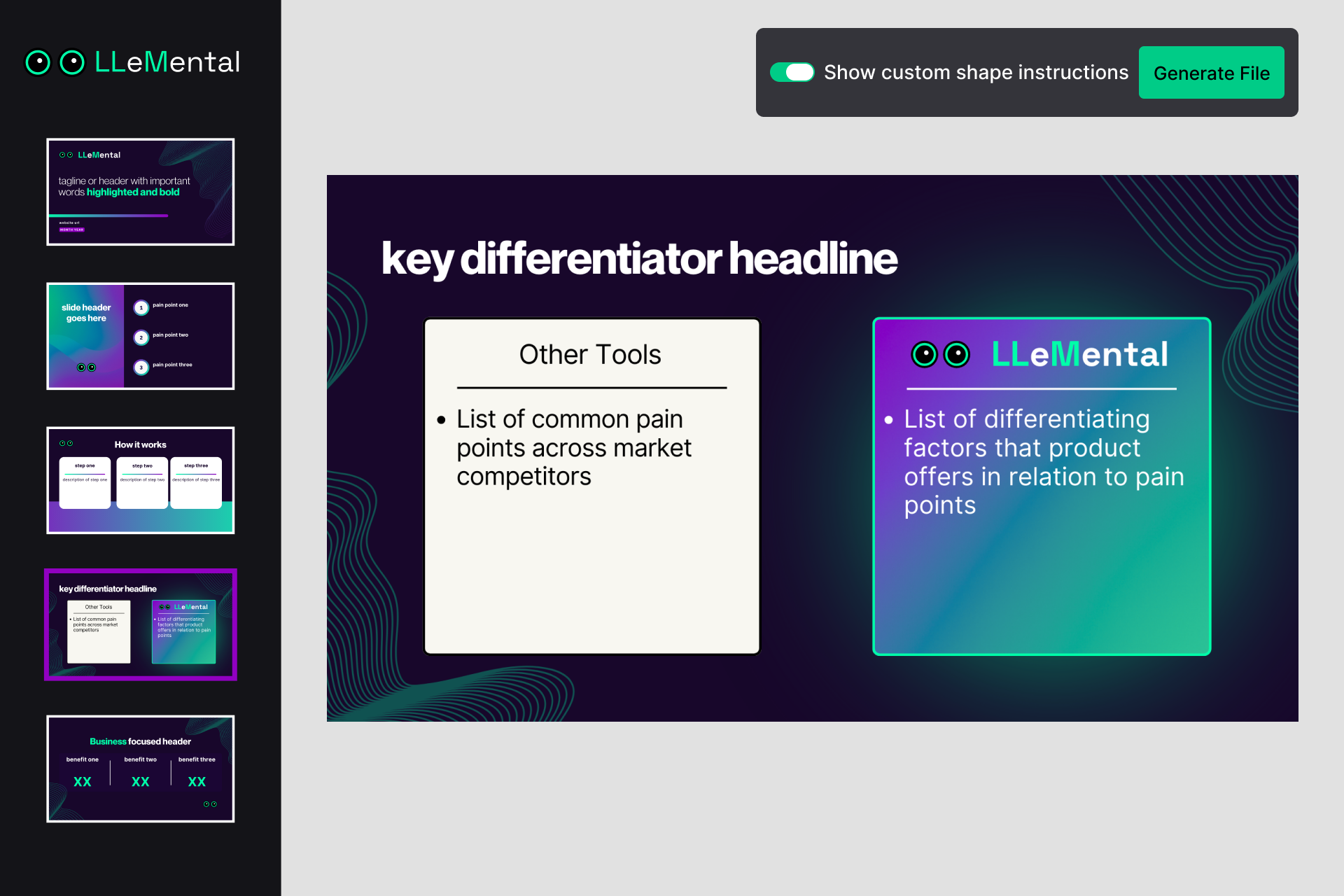
This slide structure is common in:
- Sales presentations
- Investor decks
- Product comparisons
- Marketing materials
Slide structure
Left box (Other Tools) Competitor limitations and pain points.
Right box (LLeMental) Corresponding advantages and solutions.
Objective
Create a clear contrast that positions LLeMental as the superior solution.
LLeMental works with boilerplate text, sample text, or even empty shapes. If you already have a completed presentation for one client or project, you can upload that as a template — the system analyzes the existing content and generates similar content for future use cases.
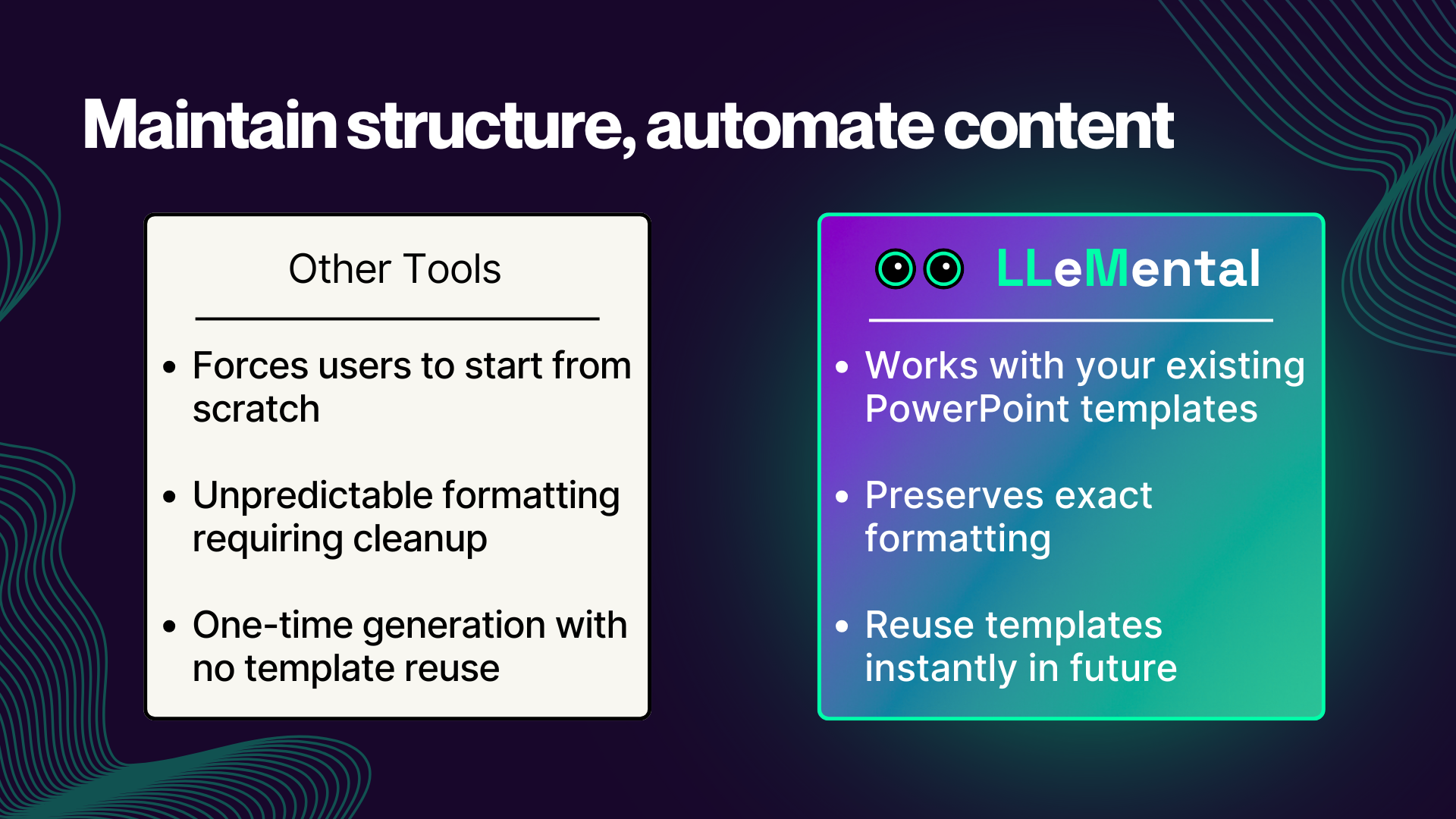
Approach 1: Feature-Focused Technical Comparison
This approach works best for audiences evaluating solutions based on technical capabilities. It compares features and limitations directly rather than focusing on emotional messaging.
To get this style, send the chat editor a message like:
“Rewrite this slide as a technical feature comparison. The left column should list 3–4 technical limitations of competing presentation tools. The right column should list the corresponding LLeMental capabilities. Keep the tone objective and professional.”
Here’s the result:
When to use this approach
✅ Technical product demos
✅ B2B sales presentations to technical buyers
✅ Implementation proposals
✅ Partner enablement presentations
Tone characteristics: Objective, factual, feature-driven
Approach 2: User Pain Point & Outcome Focused
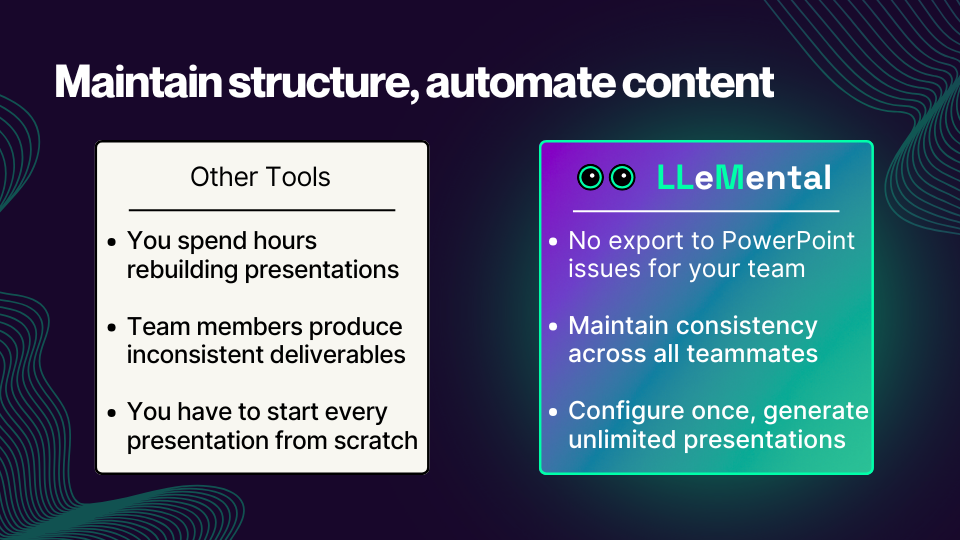
This approach focuses on user frustrations and real-world outcomes rather than product features. It works well when presenting to practitioners who experience the problem directly — for example, agency teams who spend hours rebuilding presentations from scratch.
To get this style, send the chat editor a message like:
“Rewrite this slide from the perspective of a marketing agency practitioner. The left column should describe the frustrations agencies experience with generic AI tools. The right column should describe the outcomes they achieve with LLeMental. Keep the tone relatable and solution-focused, not promotional.”
Here’s the result:
When to use this approach
✅ Marketing presentations
✅ Practitioner-focused sales decks
✅ Case study presentations
✅ Webinar content
Tone characteristics: Relatable, empathetic, solution-focused
Approach 3: Data-Driven ROI Comparison
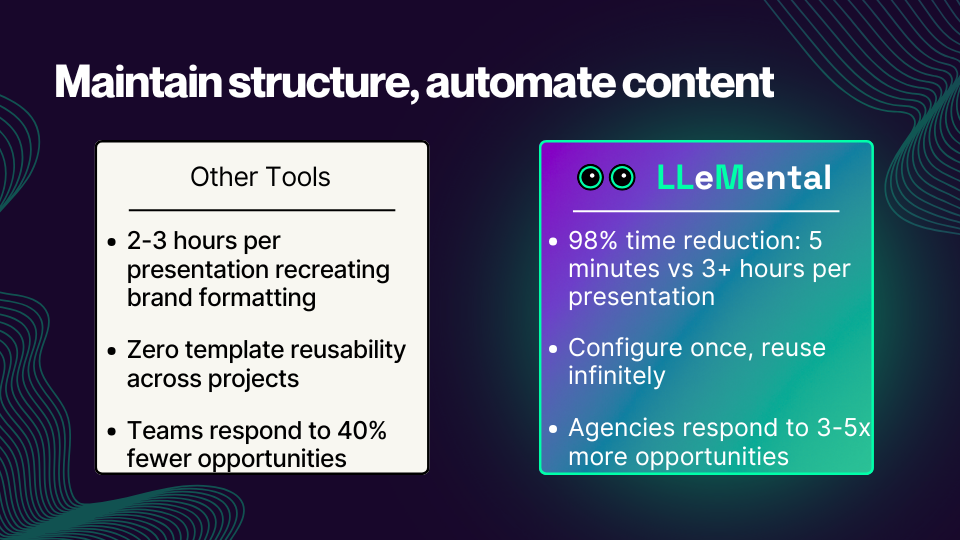
This approach focuses on measurable business outcomes and works best for executive audiences who need to justify spend or make build-vs-buy decisions.
To get this style, send the chat editor a message like:
“Rewrite this slide for an executive audience. The left column should describe the business inefficiencies of traditional tools — time, cost, and capacity constraints. The right column should quantify the improvements LLeMental delivers. Include metrics or percentages wherever possible.”
Here’s the result:
When to use this approach
✅ Executive presentations
✅ Board meetings
✅ RFP responses
✅ Investment pitches
Tone characteristics: Analytical, quantified, business-focused
Side-by-Side Comparison
| Approach | Best Audience | Tone |
|---|---|---|
| Feature Comparison | Technical buyers | Objective |
| Pain Point Comparison | Practitioners | Relatable |
| ROI Comparison | Executives | Analytical |
If you regularly present to different audience types, consider saving separate templates for each — with Instructions tailored to that audience — rather than adjusting the chat editor each time.
Cleaning Up Templates for Best AI Performance
LLeMental works with all existing PowerPoint templates without modification. However, small structural cleanups can make it easier for the AI to understand how your slides are organized and improve generation quality.
These adjustments usually take only a few minutes.
Avoid Layered Text Boxes
Sometimes templates contain multiple text boxes stacked on top of each other.
For example:
• One text box with a heading like “Overview” • A second text box below it with descriptive content • A third text box below that with a styled subheading
While this layout may look fine visually, it can be harder for the AI to understand that these shapes belong to the same section.
A clearer approach is to combine these into one text box containing the title and the descriptive text.
PowerPoint formatting (bold, underline, spacing) will still create the visual hierarchy, and the AI will more easily understand the structure.
Reduce Nested Shapes
Some templates place text boxes inside grouped shapes or layered design elements.
When possible, keep the text box itself as the primary container for content. Decorative shapes can remain, but the actual text area should be clearly defined.
Keep Related Content Together
If several pieces of text belong to the same idea, placing them in the same text box often improves clarity.
For example, instead of separating a section title and its bullet points into multiple shapes, placing them together makes the content relationship clearer.
Don’t Over-Optimize
These adjustments are optional. Most templates will work without modification.
The goal is simply to make the slide structure easier to interpret so the AI can generate content more accurately.
Advanced Tips for Power Users
Leverage Existing Template Formatting
LLeMental automatically recognizes formatting patterns such as:
- bullet points
- numbered lists
- paragraph blocks
You usually don’t need to specify these in Instructions unless you want to override the existing layout.
Consider Multi-Slide Narrative Flow
When writing Instructions for multi-slide presentations, think about the progression across slides rather than individual sections:
- Problem identification
- Solution introduction
- Feature explanation
- Business impact
- Next steps
Noting this flow in your Instructions helps the AI maintain narrative coherence across the full deck.
Use the Chat Editor for One-Off Exceptions
If 95% of your generations are consistent but occasionally one slide needs a different approach, use the chat editor rather than modifying your saved Instructions. This keeps your template optimized for the typical case while giving you flexibility for exceptions.
Common Mistakes to Avoid
Overly Complex Instructions
If your Instructions are long and multi-layered, break them into the most important priorities. The AI performs better with clear, focused guidance than with exhaustive requirements that may conflict.
Contradictory Instructions
Avoid conflicting directions like:
“Be extremely detailed but brief.”
Pick one priority. Use the chat editor to adjust individual slides where you need something different.
Assuming Context
Always explain what the slide or section represents. The AI understands your template structure, but context about your audience, product, or competitive positioning helps it generate more relevant content.
Next Steps
Once you’ve added Instructions to a template, they’re saved permanently and applied to every future generation — no need to re-enter them.
To continue learning:
Need help configuring templates?
Contact our support team at support@llemental.com. d projects without repeating the setup process.
To continue learning:
Need help configuring templates?
Contact our support team at support@llemental.com.